Aria: behavior hooks
Package aria holds the
unstyled behavior of interface components, in the model of React Aria and
Floating UI: hooks that implement interaction, positioning and accessibility
once, and return props to put on your own elements. The look is yours (or
the kit components’).
import "github.com/kuronosu/tela/aria"| You want | Use |
|---|---|
| One “press” for mouse, touch, pen and keyboard | aria.UsePress |
| A button, on any element | aria.UseButton |
| A button that is on or off | aria.UseToggleButton |
| A checkbox or a switch | aria.UseCheckbox, aria.UseSwitch |
| One choice among radios | aria.UseRadioGroup |
| A segmented control, or a toolbar of toggle buttons | aria.UseToggleGroup |
| A slider, or a range slider | aria.UseSlider |
| A progress bar or a meter | aria.UseProgressBar, aria.UseMeter |
| A calendar that selects a date, or a range of dates | aria.UseCalendar, aria.UseRangeCalendar |
| A color picker: the color, an area, sliders and a hex field | aria.UseColorState, aria.UseColorArea, aria.UseColorSlider, aria.UseColorField |
| To know that a mouse or a pen is over an element | aria.UseHover |
| A focus ring that shows after the keyboard, not after a click | aria.UseFocusRing |
| A dialog that keeps the focus, or a toolbar with arrow keys | aria.UseFocusScope |
| A popover, tooltip, menu or select list next to its button | aria.UseFloating |
| An overlay that Escape and a press outside dismiss, modal or not | aria.UseOverlay |
| A dialog or an alert dialog (role, name, focus) | aria.UseDialog |
| A popover positioned next to its trigger and dismissed | aria.UsePopover |
| The open state of an overlay and its trigger’s props | aria.UseOverlayTrigger |
| A menu button (press, long press, arrow keys) | aria.UseMenuTrigger |
| A tooltip with delays | aria.UseTooltipTrigger |
| A list of options to select from, with the keyboard | aria.UseListBox |
| The menu that a menu button opens | aria.UseMenu |
| A menu bar (File, Edit, View) | aria.UseMenuBar |
| A context menu: right click, long press, Shift+F10 | aria.UseContextMenuTrigger |
| Tabs and their panels | aria.UseTabs |
| A select: a button that shows the chosen item and opens a list | aria.UseSelect |
| A text field that filters a list of suggestions | aria.UseCombobox |
| What is selected in those | aria.Selection |
The select and the combobox are built on the list box and the popover.
The pattern: options in, Props out
Section titled “The pattern: options in, Props out”A hook takes an options struct and returns a struct. Its Props field is one
tela.Prop with everything the hook needs on the element (handlers, ref,
role, aria states); the other fields are state to style from:
press := aria.UsePress(aria.PressOptions{ OnPress: func(e aria.PressEvent) { save() }, Disabled: busy,})return Button(press.Props, Class("rounded-md px-3 py-1.5"), If(press.Pressed, Class("scale-95")), Text("Save"))Props merges several props: the handlers of one event all run, in the order
given, so hook props combine with your own and with each other:
ref := tela.UseElementRef()btn := aria.UseButton(aria.ButtonOptions{Ref: ref, OnPress: func(aria.PressEvent) { save() }})ring := aria.UseFocusRing(aria.FocusRingOptions{Ref: ref})hover := aria.UseHover(aria.HoverOptions{})return Button(btn.Props, ring.Props, hover.Props, OnPointerDown(func() { track("down") }), Class("rounded-md px-3 py-1.5 transition"), If(hover.Hovered, Class("bg-accent")), If(ring.FocusVisible, Class("ring-2 ring-primary")), Text("Save"))One ref per element. The hooks that need the element itself (press, focus
ring, focus scope, and the controls built on press) attach a ref to it, and an
element has one. When several hooks serve one element, make the ref once with
tela.UseElementRef and give it to each as Ref, as above. Two different
refs on one element are a mistake, and dev mode panics naming both call
sites and the fix (outside dev mode the last one wins, and a press never sees
the pointer leave). That includes an h.Ref(other) next to the props of a
hook: use the Ref field of a hook’s result, or pass the ref to the hook. The
same ref twice is fine.
Controlled or not. A hook that holds state keeps it itself (uncontrolled,
starting at DefaultSelected or DefaultOpen), and lets you keep it
(controlled) when you pass a pointer to your value (Selected: &on,
Open: &open): it then shows it and only asks OnChange or OnOpenChange
for the next value, like an Input with Value and OnChange. A change you
do not store is refused. OnChange is also called for an uncontrolled
control, to follow it.
box := aria.UseCheckbox(aria.ToggleOptions{DefaultSelected: true}) // uncontrolledbox = aria.UseCheckbox(aria.ToggleOptions{OnChange: func(on bool) { save(on) }}) // uncontrolled, notifiedon, setOn := tela.UseState(false)sw := aria.UseSwitch(aria.ToggleOptions{Selected: &on, OnChange: setOn.Set}) // controlledPress: UsePress
Section titled “Press: UsePress”UsePress is React Aria’s usePress: the same press for every input.
| Input | The press |
|---|---|
| Mouse, touch, pen | Starts when the primary button, a finger or the pen goes down on the element. A release over the element completes it; leaving the element ends it (OnPressEnd, no OnPress) and coming back while held starts it again, unless ShouldCancelOnPointerExit. The system taking the touch, a touch that becomes a scroll, or the element unmounting cancel it. |
| Enter | On the focused element, presses at once on the key down. Key repeats are ignored. |
| Space | On the focused element, starts on the key down and completes on the key up. Repeats are ignored, and a blur in the middle cancels it. |
| Virtual | A click that no pointer or key made: an agent’s “click” action, a Label forwarding its click to the control, assistive technology. PointerType is aria.PointerVirtual. |
The callbacks are OnPressStart, OnPressUp, OnPressEnd, OnPressChange
and OnPress; PressEvent has the PointerType, the modifier keys and the
position of the event (X, Y in the window, LocalX, LocalY in the
element; the center for the keyboard and virtual presses). The result’s
Pressed is true while pressed: use it for the look, since the active:
variant follows the pointer only.
A press stops the propagation of the events that make it, so a pressable
card inside a pressable row presses only the card. Call
e.ContinuePropagation() in a callback to let them bubble. It also prevents
the default action of the click: a Button with press props does not submit
its Form (use UseButton’s Type, or call the handler from OnPress), and
a Label does not forward the click. A disabled press (Disabled: true) ignores everything. The hook
adds no role and no tab stop: for a button use UseButton.
Buttons and toggles
Section titled “Buttons and toggles”UseButton is a press plus Role("button"), a tab stop and Disabled: it
makes a Div or an A a button, and a Button a correct one.
Its Type is HTML’s: "button" (the default) does nothing to the Form that
contains it, "submit" submits it and "reset" resets it, when the press
completes (after OnPress), whatever the element is:
save := aria.UseButton(aria.ButtonOptions{Type: "submit"})return Form(OnSubmit(func(tela.SubmitEvent) { send() }), Input(Name("title")), Div(save.Props, Class("rounded-md bg-primary px-3 py-1.5"), Text("Send")))A Button that has the props of a press hook is type="button" until the hook
says "submit": Enter in a text field presses the first button of type submit
(the form’s default button), and a select’s trigger, a switch or a menu button
that came first in the form must not be it. An explicit h.Type still wins.
A Div made a button by a hook with Type: "submit", as above, is a submit
button too: Enter in any field of the form presses it, as an HTML submit
button; when the default button is disabled, Enter submits nothing (HTML).
ElementRef.Click() is the DOM’s element.click(): from a handler or an effect
it dispatches a click (a virtual press for the hooks) at the element and runs
its activation behavior, so a hook-made button with Type: "submit" submits
through it, a Button in a Form submits or resets by its h.Type, and a
Label forwards to its control. A disabled or unmounted element ignores it.
UseToggleButton, UseCheckbox and UseSwitch take aria.ToggleOptions
(Selected, DefaultSelected, OnChange, the press callbacks OnPress,
OnPressStart, OnPressEnd, OnPressChange and OnPressUp, Disabled,
ReadOnly, ID, Ref) and return Selected, Pressed, ID and Props:
| Hook | Role and state | Keys |
|---|---|---|
UseToggleButton |
button, aria-pressed |
Enter and Space |
UseCheckbox |
checkbox, aria-checked |
Space (not Enter, as in HTML) |
UseSwitch |
switch, aria-checked |
Space |
func Notifications() tela.Node { box := aria.UseCheckbox(aria.ToggleOptions{DefaultSelected: true}) return Div(Class("flex items-center gap-2"), Button(box.Props, Class("size-4 rounded border checked:bg-primary")), Label(For(box.ID), Text("Notifications")))}- Render a checkbox or switch with a
Button: it is the element aLabelcan label, soLabel(For(box.ID), ...)names the control and a click on the label toggles it. - A selected checkbox or switch matches
checked:(andpeer-checked:,group-checked:), andaria-checked:; a toggle button matchesaria-pressed:.checked:matches an element whoseh.AriaCheckedis true, because Tela has no native checkbox. ReadOnlykeeps the control focusable and readable but not changeable (aria-readonly). There is no indeterminate state yet.
The aria snapshot shows them as Playwright does:
- checkbox "Notifications" [checked]- switch "Wi-Fi" [checked]- switch "Bluetooth" [disabled]- button "Bold" [pressed]Hover: UseHover
Section titled “Hover: UseHover”hover := aria.UseHover(aria.HoverOptions{OnHoverStart: func(aria.HoverEvent) { preload() }})return Div(hover.Props, If(hover.Hovered, Class("ring-2")), Text("Card"))Hovered is true while a mouse or a pen is over the element or its
descendants. A touch never hovers (the enter that a touch press makes is
ignored). The hover: variant covers styling; use the hook when Go needs to
know.
Focus ring: UseFocusRing
Section titled “Focus ring: UseFocusRing”UseFocusRing returns Focused and FocusVisible: the ring shows after the
keyboard moves the focus (Tab, arrows) and not after a click, as Chromium’s
:focus-visible does. With Within: true it follows the focus anywhere
inside the element (a group that rings all its parts).
ring := aria.UseFocusRing(aria.FocusRingOptions{})return Button(ring.Props, If(ring.FocusVisible, Class("ring-2 ring-primary")), Text("Save"))Focus scope: UseFocusScope
Section titled “Focus scope: UseFocusScope”UseFocusScope(aria.FocusScopeOptions{Contain, Restore, AutoFocus}) makes an
element a focus scope and returns Props and a Manager:
Containkeeps the focus inside the scope (a dialog): Tab and Shift+Tab wrap around inside it, a press on something that is not focusable (the scrim of an alert dialog) leaves the focus where it is, and a press or a script that would focus an element outside keeps it inside. When the focused element inside unmounts (a button that removes its own row), the focus goes to the scope’s element if it is focusable (TabIndex(-1), asUseDialoggives it), else to its first tabbable element. Popovers and selects opened from inside the scope count as inside.Restoregives the focus back, when the scope unmounts, to the element that had it when the scope mounted (the button that opened the dialog).AutoFocusfocuses the first tabbable element after the frame that mounts the scope, unless the focus is already inside.
scope := aria.UseFocusScope(aria.FocusScopeOptions{Contain: true, Restore: true, AutoFocus: true})return Div(scope.Props, Role("dialog"), AriaLabel("Settings"), ...)The Manager moves the focus among the focusable elements of the scope from
your handlers, in tree order; each method reports whether it found one:
scope := aria.UseFocusScope(aria.FocusScopeOptions{})return Div(scope.Props, Role("toolbar"), OnKeyDown(func(e tela.KeyboardEvent) { switch e.Key { case tela.KeyArrowRight: e.PreventDefault() scope.Manager.FocusNext(aria.FocusOptions{Wrap: true}) case tela.KeyArrowLeft: e.PreventDefault() scope.Manager.FocusPrevious(aria.FocusOptions{Wrap: true}) }}), buttons)FocusFirst, FocusLast, FocusNext and FocusPrevious take
aria.FocusOptions: Wrap goes around at the ends, Tabbable leaves out the
elements that only a script can focus (TabIndex(-1)), From starts at
another element of the scope.
Radio groups, toggle groups and sliders
Section titled “Radio groups, toggle groups and sliders”Radio groups: UseRadioGroup
Section titled “Radio groups: UseRadioGroup”plans := []string{"free", "pro", "team"}plan, setPlan := tela.UseState("pro")g := aria.UseRadioGroup(aria.RadioGroupOptions[string]{ Keys: plans, Value: &plan, OnValueChange: setPlan.Set, AriaLabel: "Plan",})return Div(g.Props, Class("flex flex-col gap-2"), Range(len(plans), func(i int) tela.Node { k := plans[i] return Div(Key(k), Class("flex items-center gap-2"), Button(g.RadioProps(k), Class("size-4 rounded-full border checked:bg-primary")), Label(For(g.RadioID(k)), Text(k))) }))- radiogroup "Plan": - radio "free" - text: free - radio "pro" [checked] - text: proUseRadioGroup is React Aria’s useRadioGroup and useRadio with
useRadioGroupState. At most one radio is checked. The value follows the
rule of the other controls: Value *K makes it controlled (a value the app
does not store is refused; a value that is not one of Keys, such as "",
checks nothing), DefaultValue *K starts an uncontrolled group
(DefaultValue: new("pro")), and OnValueChange is called for both. With no
value nothing is checked. Disabled, DisabledKeys, ReadOnly and
Required are the states of the group and its radios.
- The arrow keys (all four, in either
Orientation) move the focus to the next enabled radio, wrapping, and check it;Direction: "rtl"swaps left and right of a horizontal group. Space checks the focused radio and Enter does nothing. A press (a click, a tap, aLabel) checks a radio. - Tab enters the group at the checked radio, or at the first enabled one when none is checked: the group is one tab stop.
- Render a radio with a
Button: aLabel(For(g.RadioID(k)))then names it and checks it when clicked, and Enter in a text field of aFormstill submits the form (a radio is never its default button). ADivworks too, but aLabelonly names it. - The group is named by
AriaLabel,AriaLabelledByor the element withLabelProps.checked:andaria-checked:match the checked radio.
Toggle groups: UseToggleGroup
Section titled “Toggle groups: UseToggleGroup”A segmented control, or a toolbar of toggle buttons: React Aria’s
useToggleButtonGroup and useToggleButtonGroupItem. The selection is an
aria.Selection, controlled with Selected
and uncontrolled with DefaultSelected.
modes := []string{"list", "grid"}view := aria.UseToggleGroup(aria.ToggleGroupOptions[string]{ Keys: modes, DefaultSelected: aria.SelectionOf("list"), DisallowEmptySelection: true, AriaLabel: "View",})return Div(view.Props, Class("inline-flex rounded-md border"), Range(len(modes), func(i int) tela.Node { return Button(view.ItemProps(modes[i]), Key(modes[i]), Class("px-3 py-1 aria-checked:bg-accent"), Text(modes[i])) }))SelectionMode |
Group | Items |
|---|---|---|
"single" (the default) |
radiogroup |
radio, aria-checked |
"multiple" |
toolbar |
button, aria-pressed |
The arrows of the orientation move the focus without toggling (Home and End
jump; ShouldFocusWrap goes around the ends); Enter, Space and a press
toggle. The group is one tab stop: Tab enters at the item that had the focus
last, else the first one that is on. Pressing the item that is on turns it off
unless DisallowEmptySelection.
Sliders: UseSlider
Section titled “Sliders: UseSlider”React Aria’s useSlider and useSliderThumb with useSliderState. A slider
has one thumb per value, so a range slider is two:
s := aria.UseSlider(aria.SliderOptions{ DefaultValues: []float64{20, 80}, Min: 0, Max: 100, Step: 5, AriaLabel: "Price", ThumbLabels: []string{"Minimum price", "Maximum price"},})track := tela.UseSize(s.TrackRef)return Div(s.Props, Class("w-64 p-4"), Div(s.TrackProps, Class("relative h-2 rounded-full bg-muted"), Range(len(s.Values), func(i int) tela.Node { return Div(s.ThumbProps(i), Key(i), Class("absolute -top-1.5 -ml-2.5 size-5 rounded-full bg-primary"), Style(tela.TranslateFn(func() (x, y float32) { return float32(s.ThumbPercent(i)) / 100 * track.Get().Width, 0 }))) })))- group "Price": - slider "Minimum price" - slider "Maximum price"Values *[]float64controls the values,DefaultValuesstarts them,OnValuesChangeis called with all the values on every change andOnChangeEndwhen the user stops (the pointer is released, or a key changed a value). A single slider is a slice of one value, as in Radix and shadcn/ui.- A press on the track moves the nearest thumb to the point and keeps dragging
it; a press on a thumb drags it without a jump. Mouse, touch and pen drag the
same way, and the thumb keeps the pointer wherever it goes. Thumbs never
cross (nor come nearer than
MinStepsBetweenThumbssteps), and values round toStepfromMin. - Keys on a thumb: the arrows move it by one
Step(by a page with Shift), PageUp and PageDown by a page (a tenth of the range, rounded to a step), Home and End to its limits.Direction: "rtl"mirrors a horizontal slider and its left and right arrows; a"vertical"slider hasMinat the bottom. ThumbPercent(i)(0 to 100, where React Aria’s fractions go from 0 to 1) is made to be read in the paint-phase closure of the thumb, as above: dragging moves the thumb by repainting, and an uncontrolled slider builds when the drag starts and ends (and when the pointer rests for a moment, so thataria-valuenowfollows), not on every move. A controlled slider builds as often as the app’s state changes.aria-valuetextisFormatValue(v), by default the number as it is written;ValueText(i)is the same text to show.
Progress bars and meters: UseProgressBar, UseMeter
Section titled “Progress bars and meters: UseProgressBar, UseMeter”p := aria.UseProgressBar(aria.ProgressBarOptions{Value: done, AriaLabel: "Upload"})return Div(p.Props, Class("h-2 w-64 overflow-hidden rounded-full bg-muted"), Div(Class("h-full bg-primary"), Class(fmt.Sprintf("w-[%g%%]", p.Percent))))A progressbar or a meter role with aria-valuenow, -valuemin, -valuemax
and -valuetext (the rounded percentage, “40%”, unless FormatValue). A
progress bar with Indeterminate has no value. Percent goes from 0 to 100.
How it differs from React Aria
Section titled “How it differs from React Aria”- Options structs and
Props, with the integrated state of ADR-101 (Value *K,Values *[]float64,Selected Selection[K]), instead of the stately layer. - A radio is checked on its click, not on a native input’s change; Space checks on the key down. There is no hidden input and no form value.
- A radio group’s arrows work in both orientations as React Aria’s, and
aria-orientationdefaults to"vertical". - A toggle group adds Home and End and
ShouldFocusWrap. - A slider has no hidden
input type="range"; the thumb is thesliderand takes the keys. Its percentages go from 0 to 100.
Colors
Section titled “Colors”A color picker is a shared color and the parts that change it. UseColorState
holds the color; UseColorArea, UseColorSlider and UseColorField (React
Aria’s useColorArea, useColorSlider and useColorField, with
useColorPickerState) take it as State and return props. They must be
called in the component that made the state.
st := aria.UseColorState(aria.ColorStateOptions{DefaultValue: new(tela.Hex("#6366f1"))})area := aria.UseColorArea(aria.ColorAreaOptions{State: st, AriaLabel: "Color"})hue := aria.UseColorSlider(aria.ColorSliderOptions{State: st, Channel: aria.ColorHue})hex := aria.UseColorField(aria.ColorFieldOptions{State: st, AriaLabel: "Hex"})size := tela.UseSize(area.AreaRef)track := tela.UseSize(hue.TrackRef)return Div(Class("flex w-64 flex-col gap-4 p-4"), Div(area.AreaProps, Class("relative h-48 rounded-md"), Style(tela.BgFn(func() tela.Color { return aria.HSB{H: st.LiveHSB().H, S: 100, B: 100, A: 1}.Color() })), Div(area.ThumbProps, Class("absolute left-0 top-0 -ml-2.5 -mt-2.5 size-5 rounded-full border-2 border-white"), Style(tela.TranslateFn(func() (x, y float32) { px, py := area.ThumbPercent() return float32(px) / 100 * size.Get().Width, float32(py) / 100 * size.Get().Height })))), Div(hue.Props, Div(hue.TrackProps, Class("relative h-3 rounded-full"), Div(hue.ThumbProps, Class("absolute -top-1 -ml-2.5 size-5 rounded-full border-2 border-white"), Style(tela.TranslateFn(func() (x, y float32) { return float32(hue.ThumbPercent()) / 100 * track.Get().Width, 0 }))))), Input(hex.InputProps, Class("w-28 rounded-md border px-2 font-mono")))- group "Color": - slider "Color"- group "Hue": - slider "Hue"- textbox "Hex": "#6366f1"(The thumbs’ aria-valuetext is “Saturation 58%, Brightness 94%” and “Hue 239°”.
The area’s background is the kit’s job: the hue’s color with a white gradient
across and a black gradient down. TrackColors() of a slider gives the stops
of its gradient.)
- The color.
ColorStateOptions.Value *tela.Colorcontrols it,DefaultValuestarts it andOnChangeis called with every change, as ADR-101’s rule says. The state keeps the color as anaria.HSB(hue 0 to 360, saturation and brightness 0 to 100, opacity 0 to 1) and reports atela.Color, so that dragging to a gray or to black does not lose the hue:ToHSBof a gray has no hue, the state does. A color the caller passes back is recognized as the one it reported, and a gray of the caller’s own keeps the hue it was shown with.st.Set(c)asks for a color (a swatch).Color()andHSB()are those of the last build;LiveColor()andLiveHSB()are made to be read in paint-phase closures (tela.BgFn). - The area drags with a mouse, a finger or a pen: a press places the thumb
and goes on dragging it; a press on the thumb drags it without a jump. Its
channels are
XChannel(saturation) andYChannel(brightness) by default, any two of hue, saturation and brightness; the third is the state’s.ThumbPercent()returns the position in percent from the left and the top, to be read in the thumb’s paint-phase closure: dragging repaints and does not build, as the slider does (the color builds when the drag starts and ends, and when the pointer rests for a moment). - Keys on the area’s thumb: the arrows move it by one step (by a page with
Shift), PageUp and PageDown change the Y channel by a page and Home and End
the X channel, as React Aria’s area does.
Direction: "rtl"mirrors the X axis and the left and right arrows. The thumb is onesliderwhosearia-valuetexthas both channels (“Saturation 58%, Brightness 94%”). - A color slider is built on
UseSliderfor oneChannel: hue (0 to 360, a page of 15), alpha (0 to 1), saturation and brightness, or, withSpace: "hsl", the HSL saturation andColorLightness.aria-valuetextis the channel and its value (“Hue 180°”;FormatValuefor another language);TrackColors()returns the colors at the stops of the gradient behind it. - The hex field commits on blur and Enter: a code that parses (
#rgb,#rgba,#rrggbb,#rrggbbaa, with or without the#) sets the color and anything else reverts to the color’s code. Characters that cannot be part of a code are not typed; ArrowUp and ArrowDown add or subtract one (PageUp and PageDown sixteen) from the color as a number.Alphashows and accepts the opacity. - Conversions:
ToHSB,ToHSL,HSB.Color,HSL.Color,ParseHexColor(an error that says what is wrong) andFormatHexColor. They are plain functions ontela.Color, deterministic, and clamp to the sRGB gamut.
How it differs from React Aria: the area has one thumb with one slider
role and a value text for both channels, where React Aria has two hidden range
inputs, since the semantics tree has no two-dimensional slider; a color is a
tela.Color with the state holding the hue, where React Aria has Color
objects of a color space; there is no ColorWheel, ColorSwatchPicker or
color name; and there are no localized channel names, only FormatValue.
Testing
Section titled “Testing”Everything above runs in telatest: app.Click, app.Press("Enter"),
app.Press("Space"), app.Focus, app.Hover, app.Expect(loc, telatest.Checked(true)), app.AriaSnapshot(). Touch and pen have no
telatest action yet; the package’s own tests inject them as platform events.
Calendars: UseCalendar, UseRangeCalendar
Section titled “Calendars: UseCalendar, UseRangeCalendar”A month grid that selects a date, or a range of dates: React Aria’s
useCalendar, useRangeCalendar, useCalendarGrid and useCalendarCell
with useCalendarState. It is the behavior under a date picker (a button, a
popover and a calendar): the keys, the focus, the selection, the names and
the headings. The calendar is Gregorian; the names, the headings and the
first day of the week come from i18n.
cal := aria.UseCalendar(aria.CalendarOptions{AriaLabel: "Appointment", Min: aria.Today()})return Div(cal.Props, Class("w-64 p-3"), Div(Class("flex items-center justify-between"), Button(cal.PrevProps(), Text("<")), H2(cal.HeadingProps(0), Text(cal.Heading(0))), Button(cal.NextProps(), Text(">"))), Div(cal.GridProps(0), Key(cal.Month(0).String()), Div(cal.RowProps(), Class("flex"), MapIndex(cal.WeekdayNames(i18n.NameShort), func(i int, name string) tela.Node { return Div(cal.ColumnHeaderProps(i), Key(name), Class("w-8 text-xs"), Text(name)) })), Map(cal.Weeks(0), func(week []aria.Date) tela.Node { return Div(cal.RowProps(), Key(week[0].String()), Class("flex"), Map(week, func(day aria.Date) tela.Node { return Button(cal.CellProps(0, day), Key(day.String()), Class("size-8 rounded-md aria-selected:bg-primary aria-disabled:opacity-40"), If(cal.IsOutsideMonth(0, day), Class("text-muted-foreground")), Text(cal.DayText(day))) })) })))- application "Appointment, February 2026": - button "Previous" [disabled]: < - heading "February 2026" [level=2] - button "Next": ">" - grid "February 2026": - row "Sunday Monday Tuesday Wednesday Thursday Friday Saturday": - columnheader "Sunday": Su - ... - row "Sunday, February 8, 2026 Monday, February 9, 2026 ...": - gridcell "Tuesday, February 10, 2026" [selected]: "10" - gridcell "Thursday, February 12, 2026" [disabled]: "12"A date is an aria.Date,
Date{Year: 2026, Month: time.October, Day: 5}: a day without a time or a
zone, comparable with ==, usable as a map key and as the state of
tela.UseState, with AddDays, AddMonths and AddYears (the day is
clamped to the shorter month: January 31 plus a month is February 28),
Compare, Weekday and String (“2026-10-05”, the key of a cell).
aria.DateOf(t) and d.Time(loc) convert from and to a time.Time; the zero
Date is “no date”. A time.Time is not comparable by == and carries a
zone and daylight saving time that a calendar day does not have, which is why
the hooks do not use it.
State follows the rule of the other controls. The selected date is
uncontrolled when Value is nil (DefaultValue: new(aria.Today()) starts
it) and controlled when Value points to the app’s state, which may refuse
a change; OnValueChange is called for both. The focused date, the one with
the tab stop, which decides the month on display, works the same with
FocusedDate, DefaultFocusedDate and OnFocusChange (it starts at the
selected date, else today). Min and Max bound what can be focused or
selected; IsDateUnavailable marks dates that are shown but not selectable
(booked days); Disabled and ReadOnly are the states of the whole calendar.
VisibleMonths shows one to twelve months (Weeks(i) and CellProps(i, day)
take the month’s index), and the month buttons move by that many.
FirstDayOfWeek overrides the locale’s, FixedWeeks always shows six weeks,
Locale and Direction override the component’s, and Today fixes what
IsToday calls today (the default is the wall clock; give a fixed date in
tests).
Keys, on a cell: the arrows move a day or a week (left and right are
swapped in a right-to-left calendar), PageUp and PageDown a month, Shift with
them a year (the day of the month is kept, or the last one), Home and End the
first and last day of the week, Enter and Space select. The month on display
follows the focus; dates outside Min and Max cannot be reached (the focus
stops at the limit); unavailable dates can be focused, as in React Aria, and
have aria-disabled.
Ranges. UseRangeCalendar takes a Value *aria.DateRange and selects in
two steps: a press or Enter anchors the range, the pointer over a date (or the
focus on it) previews the range up to it (IsInRange, IsRangeStart,
IsRangeEnd), and a second press completes it, whichever end comes first;
Escape cancels. While a range is anchored, the dates beyond the nearest
unavailable one are not selectable unless AllowsNonContiguousRanges.
Parts. Props is the application (named by AriaLabel and the visible
range, “Appointment, October 2026”), GridProps(i) a grid named by its
heading (HeadingProps(i)), RowProps() a row, ColumnHeaderProps(i) a
columnheader named by the full weekday, and CellProps(i, day) a
gridcell with the full localized date as its name (“Monday, October 5,
2026”), aria-selected, aria-disabled and the tab stop. A cell is one
element, a focusable gridcell, which the ARIA grid pattern allows: render it
with a Button, key it by its date and the grid by its month. Dates outside
the month fill the first and last week (IsOutsideMonth(i, day)); pressing
one selects it and shows its month. Style with the aria-selected:,
aria-disabled:, disabled: and focus-visible: variants and the queries
IsToday, IsUnavailable and IsFocused. WeekdayNames(width) are the
names in the locale at an i18n.NameWidth, ordered from the first day, and
DayText(day) the number in the locale’s digits.
How it differs from React Aria
Section titled “How it differs from React Aria”- A date is an
aria.Date, not aCalendarDateof@internationalized/date; the calendar is Gregorian only, and there are no time zones or era. - A cell is one
gridcellelement instead of atdand an innerdivrole="button"; itsaria-labelis the full date, without React Aria’s “Today” and “Selected” prefixes (the state is inaria-selected, andIsTodayis for the look). - Home and End go to the start and end of the week (the APG’s keys); the calendar has no live region that announces a month change.
- The labels of the month buttons are English (“Previous”, “Next”) unless
PreviousLabelandNextLabelsay otherwise. - Outside dates are cells too, and pressing one moves to its month, where React Aria’s grid hides them.
- A range is not dragged with the pointer; it is two presses.
Floating elements: UseFloating
Section titled “Floating elements: UseFloating”UseFloating places a floating element next to an anchor. It is a port of
Floating UI’s computePosition and its
middleware, built into Tela’s frame pipeline so that the element is
in the right place in the first frame that shows it and follows its
anchor while an ancestor scrolls, with no frame of its own and no cost
while nothing changes.
func Popover(open bool) tela.Node {  anchor := tela.UseElementRef()  arrow := tela.UseElementRef()  fl := aria.UseFloating(anchor,    aria.Placement("bottom-start"), aria.Offset(8),    aria.Flip(), aria.Shift(8), aria.Arrow(arrow))
return Fragment( Button(Ref(anchor), Text("Open")), If(open, Portal( Div(fl.Props, Class("w-64 rounded-md border bg-popover p-4 shadow-md"), Text("Content"), Div(Ref(arrow), fl.ArrowProps, Class("size-2 rotate-45 border bg-popover"))))), )}anchoris thetela.ElementRefof the element the popover goes next to (attach it withh.Ref).fl.Propsgoes on the floating element. It makes itfixedat the window’s top-left corner (a later class such asabsolutewins) and places it. Put the element in aPortalso that no ancestor clips it.- The options are functional options applied in the order given, like
Floating UI’s
middlewarearray, and the order matters:OffsetbeforeFlipandShift,Arrowlast,SizeafterFlipandShift. fl.Placementis the placement afterFlipchose one ("top-start"). It reaches your build one frame after the position, so style with it (origin of an animation, the arrow’s rotation), and use the values below for what must be right in the same frame.
Placement
Section titled “Placement”aria.Placement("bottom-start") takes one of Floating UI’s 12 placements:
top, right, bottom (the default) and left, each with -start and
-end. In a right-to-left element (h.Dir("rtl") on the floating element)
-start and -end mirror, as Floating UI’s rtl does for top and
bottom. A mistake panics in dev mode with the closest valid placement:
aria: Placement("bottm-start"): unknown placement "bottm-start". Did you mean "bottom-start"? ...The middleware
Section titled “The middleware”| Option | What it does |
|---|---|
aria.Offset(8) |
The gap between the anchor and the element. aria.OffsetOptions adds CrossAxis (skid along the anchor’s edge) and AlignmentAxis. |
aria.Flip() |
Goes to the opposite side when the placement would leave the window. aria.FlipOptions: Padding, FallbackPlacements, FallbackStrategy, FallbackAxisSideDirection, NoFlipAlignment, NoMainAxis, NoCrossAxis, CrossAxisAlignment. |
aria.Shift(8) |
Slides along the anchor’s edge to stay 8 px inside the window. aria.ShiftOptions: CrossAxis, NoMainAxis, Limiter (aria.LimitShift(...) keeps it attached to the anchor). |
aria.Size(func(a aria.Available) { a.MaxHeight(a.Height) }) |
Gives you the room the element has (a.Width, a.Height, a.Rects) and limits it with a.MaxWidth(w) and a.MaxHeight(h). |
aria.Arrow(ref) |
Computes where an arrow element points at the anchor. |
aria.Hide() |
Tracks whether the anchor is scrolled out of view (fl.ReferenceHidden, fl.Escaped). |
aria.AutoPlacement() |
Picks the placement with the most room, instead of Flip. |
aria.AnchorRect(f) |
A virtual anchor (see below). |
Every options struct is a variadic argument and its zero value is Floating
UI’s defaults, so aria.Flip() and aria.Flip(aria.FlipOptions{Padding: 8})
both work. Options that default to true in Floating UI are negated here
(NoFlipAlignment) so that the zero value stays the default.
A list that fits the window: Size
Section titled “A list that fits the window: Size”Size limits the element’s border box in the same frame, with no flash of
the unlimited element. Give the element overflow-y-auto (or put its content
in a scrolling child) and a long list scrolls inside the window:
fl := aria.UseFloating(anchor, aria.Placement("bottom-start"), aria.Offset(4), aria.Flip(), aria.Shift(8), aria.Size(func(a aria.Available) { a.MaxHeight(a.Height) }, aria.SizeOptions{Padding: 8}))Portal(Div(fl.Props, Class("flex w-64 flex-col overflow-y-auto rounded-md border bg-popover"), items))A limit that apply does not ask for in a run is removed. Putting Size
after Flip and Shift gives the placement Floating UI gives; before them
the two can settle on a different placement than Floating UI’s
(ADR-099).
The arrow
Section titled “The arrow”Attach the ref given to aria.Arrow to the arrow element, with
fl.ArrowProps beside it. ArrowProps makes the arrow absolute in the
floating element and moves it, in the same frame, to the edge that faces
the anchor (half of it outside the border box, as in Floating UI’s
recipe) and along it to point at the anchor’s center, even when the
popover shifted. fl.Side and fl.Align tell the side for rotation. For
your own placement of the arrow, fl.ArrowX and fl.ArrowY are Floating
UI’s arrow data as tela.Values: read them inside a tela.TranslateFn.
Context menus and other virtual anchors
Section titled “Context menus and other virtual anchors”For a menu at the pointer, give UseFloating the zero tela.ElementRef
and an AnchorRect that returns a rectangle in window coordinates:
pointer := tela.UseValue(tela.Rect{})fl := aria.UseFloating(tela.ElementRef{}, aria.Placement("bottom-start"), aria.Flip(), aria.Shift(4), aria.AnchorRect(pointer.Get))// in an OnContextMenu handler: pointer.Set(tela.Rect{X: e.X, Y: e.Y})A Value that AnchorRect reads places the element again when it changes,
without building.
Hiding a popover whose anchor scrolled away
Section titled “Hiding a popover whose anchor scrolled away”fl := aria.UseFloating(anchor, aria.Flip(), aria.Hide())Div(fl.Props, Style(tela.OpacityFn(tela.MapValue(fl.ReferenceHidden, func(hidden bool) float32 { if hidden { return 0 } return 1}))))How it differs from Floating UI
Section titled “How it differs from Floating UI”- Positioning runs inside the frame, on the anchor as painted (scroll
offsets, transforms and layout animations applied), not on rectangles that
a
ResizeObserveror scroll listener noticed a frame later. There is noautoUpdateto configure. - The size middleware does not measure the element again inside the computation: Tela lays the tree out again within the frame (at most twice) and runs the position again with the new size.
- The clipping area is the window cut by the overflow clips of the
element’s containing-block chain: for an element in a
Portal, the window. There is noboundaryorrootBoundaryoption, and padding is one number. offsettakes numbers only (no function of the placement), the arrow computes with the floating element’s border box, and there is noinlinemiddleware.
Overlays
Section titled “Overlays”The overlay hooks follow React Aria’s useOverlay, useModalOverlay,
useDialog, usePopover, useOverlayTrigger, useMenuTrigger and
useTooltipTrigger, with the open state built in. You render the overlay
(in a Portal, while it is open); the hooks give the props.
func Filters() tela.Node { trig := aria.UseOverlayTrigger(aria.OverlayTriggerOptions{}) pop := aria.UsePopover(aria.PopoverOptions{ Trigger: trig.Ref, Ref: trig.OverlayRef, Open: trig.Open, OnClose: trig.Close, Placement: "bottom-start", Offset: 4, }) dlg := aria.UseDialog(aria.DialogOptions{Ref: trig.OverlayRef, AriaLabel: "Filters"}) return Fragment( Button(trig.TriggerProps, Class("rounded-md border px-3 py-1.5"), Text("Filters")), Portal(Presence(If(trig.Open, Div(pop.Props, dlg.Props, Exit("opacity-0"), Class("w-64 rounded-md border bg-popover p-4 shadow-md transition starting:opacity-0"), Text("Content"))))))}The trigger, the popover and the dialog all put props on the overlay’s
element, so they share its ref: trig.OverlayRef is made by the trigger hook
and passed to the others as Ref (the dev panic of the previous section tells
you when one is missing).
The overlay stack: UseOverlay
Section titled “The overlay stack: UseOverlay”UseOverlay(aria.OverlayOptions{Open, OnClose, Dismissable, KeyboardDismissDisabled, ShouldCloseOnBlur, ShouldCloseOnInteractOutside, Modal})
returns Props that put the element on the overlay stack while it is
mounted and open:
- Escape calls
OnCloseof the top overlay only, and nothing below it sees the key. WithKeyboardDismissDisabledthe overlay still takes the key but ignores it. - A press outside (the left button, a touch or a pen; at its release, with
the press kept from what is under it and its click cancelled) calls
OnCloseof the top overlay when it isDismissableandShouldCloseOnInteractOutside(e)(default: yes) allows it. Inside means inside in the element tree: the content of aPortalrendered from inside an overlay, and the overlays opened from it, count, so a press in a popover opened from a dialog does not close the dialog. Modalmakes everything outside the overlay (and outside the overlays above it) inert while it is open: it is not hit, cannot be focused, is out of the Tab order and is hidden from the aria snapshot, as React Aria’sariaHideOutside. This folds React Aria’suseModalOverlayinto one hook: there are nounderlayProps, since a press outside already hits nothing below; draw a scrim as an ordinary element.ShouldCloseOnBlurcallsOnClosewhen the focus moves to another element outside the overlay.
An alert dialog is an overlay that is not Dismissable.
Dialogs: UseDialog
Section titled “Dialogs: UseDialog”UseDialog(aria.DialogOptions{Role, Modal, AriaLabel, Ref}) returns Props
and TitleProps: the dialog (or alertdialog) role, aria-modal, the name
(the element with TitleProps, or AriaLabel) and a focus scope that moves
the focus to the first tabbable element inside when the dialog opens (the
dialog itself when there is none), keeps Tab inside it when Modal, and gives
the focus back to the element that had it when the dialog closes.
dlg := aria.UseDialog(aria.DialogOptions{Modal: true, Ref: trig.OverlayRef})ov := aria.UseOverlay(aria.OverlayOptions{Open: trig.Open, OnClose: trig.Close, Dismissable: true, Modal: true})Portal(If(trig.Open, Div(ov.Props, dlg.Props, Class("w-96 rounded-xl bg-background p-6 shadow-xl"), H2(dlg.TitleProps, Text("Delete project?")), ...)))- dialog "Delete project?": - heading "Delete project?" [level=2] - button "OK" - button "Cancel"The trigger: UseOverlayTrigger
Section titled “The trigger: UseOverlayTrigger”Holds the open state (Open *bool to control it, DefaultOpen,
OnOpenChange) and returns TriggerProps (a press that toggles, the button
role, aria-haspopup from Type (“dialog”, “menu”, “listbox”, “tree” or
“grid”), aria-expanded and, while open, aria-controls the overlay),
Open, SetOpen, Toggle, Close, and the refs Ref (the trigger’s) and
OverlayRef.
Popovers: UsePopover
Section titled “Popovers: UsePopover”UsePopover(aria.PopoverOptions{Trigger, Open, OnClose, Placement, Offset, Floating, Modal, ...})
positions the element with UseFloating (the placement and offset, Flip
and Shift(12), then the Floating options you add, such as a Size, then
an arrow) and dismisses it with the overlay stack: Escape, a press outside, or
the focus going elsewhere close it, but not a press on the trigger, which
toggles it (a modal popover closes on a trigger press, since the trigger
is inert). ArrowProps goes on an arrow element inside. The popover is where
its trigger says in the first frame that shows it.
Menu buttons: UseMenuTrigger
Section titled “Menu buttons: UseMenuTrigger”UseMenuTrigger(aria.MenuTriggerOptions{Trigger, Type, Open, DefaultOpen, OnOpenChange, Disabled, OnPress})
returns TriggerProps, MenuProps, Open, FocusStrategy, SetOpen,
Toggle, Close, Ref and MenuRef. A mouse or a pen opens the menu at the
press and a touch at the release (focusing the menu itself); Enter, Space and
ArrowDown open it with FocusStrategy "first", ArrowUp with "last". With
Trigger: "longPress" a press that lasts opens it ("first"), the quick
press is OnPress, and the keys need Alt. The menu collection (UseMenu)
reads FocusStrategy to focus its first or last item and calls
Close when an item is chosen. MenuProps holds the ref, aria-labelledby
the trigger, and a focus scope that gives the focus back to the trigger.
Tooltips: UseTooltipTrigger
Section titled “Tooltips: UseTooltipTrigger”tip := aria.UseTooltipTrigger(aria.TooltipTriggerOptions{})fl := aria.UseFloating(tip.Ref, aria.Placement("top"), aria.Offset(6), aria.Flip(), aria.Shift(8))return Fragment( Button(tip.TriggerProps, Text("Save")), Portal(Presence(If(tip.Open, Div(tip.TooltipProps, fl.Props, Exit("opacity-0"), Class("rounded bg-foreground px-2 py-1 text-xs text-background transition starting:opacity-0"), Text("Saves the file (Ctrl+S)"))))))React Aria’s rules: the tooltip opens Delay (1.5 s) after the pointer
rests on the trigger, or at once when the keyboard focuses it (a focus that a
mouse press gave does not count), and closes CloseDelay (0.5 s) after the
pointer leaves, when the trigger is pressed (a pointer, or Enter or Space; other
keys such as Shift or the arrows leave it open), when the focus leaves, and with Escape (which closes it before anything under it).
Moving the pointer onto the tooltip keeps it open. The tooltips of a window
are a group: opening one closes the others, and while one is open, or for
CloseDelay after the last closed, the next one opens at once (the warm-up
and cool-down). Trigger: "focus" ignores the pointer. A zero delay is the
default; aria.NoDelay is none. The tooltip’s TooltipProps give it the
tooltip role and make the trigger aria-describedby it (h.AriaDescribedBy).
The delays run on the frame clock, with no goroutine: app.Advance drives
them in telatest, and a pending or open tooltip asks for no frames.
- button "Save"- tooltip "Saves the file (Ctrl+S)"Exit animations
Section titled “Exit animations”Render the overlay inside a Presence with If(open, ...) and give its
element Exit classes and a transition (and starting: for the entrance), as
in the examples. While it exits the overlay is inert (ADR-080): it is
out of the overlay stack, so the page under it works, a second Escape reaches
the next overlay, and it is gone from the aria snapshot; the exit ends when
its transitions do.
How it differs from React Aria
Section titled “How it differs from React Aria”- One hook for modal and non-modal overlays (
Modal), and no underlay props; popovers are non-modal unlessModalis set (React Aria’s are modal unlessisNonModal). ShouldCloseOnInteractOutsidereceives the press (tela.PointerEvent, with its position), not the element; blur always closes.- A popover’s trigger is excluded from outside presses by comparing the press with the trigger’s bounds.
- Tooltips: the Escape is a window-level default action (the tooltip is on the
overlay stack as an Escape-only overlay, so it does not take presses), and
there is no separate
UseTooltip. aria-haspopup="dialog"is set for dialogs (React Aria omits it).
Collections
Section titled “Collections”A list box, a menu, a tab list, a select and a combobox are collections: keyed
lists of items with a focused key and a selection. You give the keys (any comparable type) on every
build and render one element per key with the props of ItemProps(key); the
hook holds the state, moves the focus and selects, with React Aria’s rules.
All of them take Keys []K and DisabledKeys []K; all but the tab list take
TextValue func(K) string (the text of an item, for typeahead; without it the
key as fmt.Sprint prints it, so typeahead works with string keys and you give
TextValue for IDs; DisallowTypeAhead turns it off). They return a result with Props for the collection’s element
(for the select and the combobox, ListBox.Props) and these, shared by all
(aria.Collection[K]):
ItemProps(k) |
The props of the item with key k: role, aria-selected / aria-checked / aria-disabled, tab stop, ref and handlers. |
IsSelected(k), IsFocused(k), IsFocusVisible(k), IsDisabled(k) |
The state, for styling in Go. |
Focused() |
The focused key and whether there is one. |
FocusKey(k), Focus(strategy), ClearFocus() |
Move the focus from a handler or an effect. |
ItemRef(k) |
The ref ItemProps attaches (one ref per element: do not attach another). |
Section(name) |
The props of a group of items and of its heading. |
Style items with the aria-selected:, aria-checked: and aria-disabled:
variants (the item’s own props, so they match exactly when the item is
selected, checked or disabled), with focus-visible: (the element that has the
focus, a ring only after the keyboard) and with the booleans above. A disabled
item also gets Disabled, so disabled: matches too.
The selection: aria.Selection
Section titled “The selection: aria.Selection”sel := aria.SelectionOf("b", "c")sel.Has("b") // truesel.With("a").Keys() // [b c a]sel.Without("b").Keys() // [c]sel.In(allKeys) // the selected keys in the order of allKeysaria.All[string]() // React Aria's "all"A Selection[K] is an immutable set: its methods return new values, so it is
safe in tela.UseState and shared freely. All is a selection of every item
that can be selected; it does not list the keys (Len is 0), so turn it into
keys with Resolve(keys) when you need them. Equal compares the keys
(== compares identity, so two equal sets are not ==).
The zero Selection means “not given”: a hook option left at it is
uncontrolled, the hook keeps the selection (starting at DefaultSelected).
A non-zero Selected is controlled: the collection shows it and only asks
OnSelectionChange for the next one, so a change you do not store is refused.
aria.SelectionOf[string]() (no keys) is a controlled, empty selection.
OnSelectionChange is also called for an uncontrolled collection.
// Uncontrolled.aria.ListBoxOptions[string]{Keys: fruit, SelectionMode: "multiple", DefaultSelected: aria.SelectionOf("banana")}
// Controlled.sel, setSel := tela.UseState(aria.SelectionOf("banana"))aria.ListBoxOptions[string]{Keys: fruit, SelectionMode: "multiple", Selected: sel, OnSelectionChange: setSel.Set}
List boxes: UseListBox
Section titled “List boxes: UseListBox”var fruit = []string{"apple", "banana", "cherry"}
lb := aria.UseListBox(aria.ListBoxOptions[string]{ Keys: fruit, TextValue: strings.ToUpper, SelectionMode: "single", AriaLabel: "Fruit",})return Div(lb.Props, Class("w-48 rounded-md border p-1"), Range(len(fruit), func(i int) tela.Node { k := fruit[i] return Div(lb.ItemProps(k), Key(k), Class("rounded px-2 py-1 aria-selected:bg-primary aria-selected:text-primary-foreground focus-visible:ring-2"), Text(k)) }))- listbox "Fruit": - option "apple" - option "banana" [selected] - option "cherry"Render the items as Divs or Lis, not Buttons (a Button activates on Enter
and Space by itself). The options:
| Option | Does |
|---|---|
SelectionMode |
"none" (default), "single", "multiple". |
SelectionBehavior |
"toggle" (default: a click toggles the item, so plain clicks build a multiple selection) or "replace" (a click selects only that item; Ctrl+click toggles, Shift+click selects a range; the arrow keys move the selection). |
Selected, DefaultSelected, OnSelectionChange |
See above. |
DisallowEmptySelection, DisallowSelectAll |
Keep one item selected; turn off Ctrl+A. |
OnAction |
Called when an item is activated: Enter, a tap, or a click when nothing is selected ("toggle") or the list does not select. With "replace" and a selection, a click selects and a double click or Enter runs the action. |
Orientation, Direction |
"horizontal" lists use the left and right arrows (swapped by "rtl"). |
ShouldFocusWrap |
ArrowDown on the last item focuses the first. |
ShouldFocusOnHover |
The mouse focuses the item it moves over. |
AutoFocus, FocusStrategy |
Focus on mount: the first selected item, else aria.FocusFirst / aria.FocusLast, else the list. |
AriaLabel, AriaLabelledBy, Ref |
Name the list; share its ref with other hooks. |
Counting a selection. sel.Len() counts an explicit selection only: for
aria.All it is 0. Use len(sel.In(keys)) for the number of selected items
whatever the selection is.
Keyboard. Tab enters the list (the first selected item, else the first, takes
the focus; only the focused item is a tab stop). ArrowUp and ArrowDown, Home and
End move the focus and skip disabled items; PageUp and PageDown move a
viewport of items; typing text moves to the next item that starts with it
(case-insensitive; the typed string expires after one second on the frame clock,
and a Space typed inside that second is a character of the search and selects
nothing, as in React Aria);
Space and Enter select or act; with a multiple selection Shift+ArrowDown extends
the range, Ctrl+A (Cmd+A on a Mac) selects everything, Ctrl+ArrowDown moves
without selecting ("replace") and Escape clears the selection.
Sections. lb.Section("fruit") returns Props for a group of items (role
group, named by its heading) and HeadingProps for the heading; the keys stay
one flat list, so the arrow keys cross sections.
- listbox "Food": - group "Fruit": - text: Fruit - option "Apple"Long lists
Section titled “Long lists”Give the items to a h.VirtualList with lb.Props
on the list itself (it carries the ref the hook scrolls through):
h.VirtualList(len(keys), func(int) float32 { return 32 }, func(i int) tela.Node { return Div(lb.ItemProps(keys[i]), Class("h-8"), Text(keys[i]))}, lb.Props, Class("h-64"))Keys of items that are not rendered can be focused: End, typeahead and the page keys scroll the list to the item, which takes the focus when it mounts. Ctrl+A selects the whole list.
Virtual focus
Section titled “Virtual focus”With ShouldUseVirtualFocus the list keeps the focus and highlights an item
(aria-activedescendant); the items are not focusable and IsFocused(k) says
which one is highlighted. ExternalFocus is the same for a list that never has
the focus because another element does, a combobox’s input: that element calls
lb.HandleKeyDown from its key handler and puts lb.ActiveDescendant() on
itself; a press on an option leaves the focus where it is.
Input(AriaLabel("Search"), OnKeyDown(lb.HandleKeyDown), lb.ActiveDescendant(), OnBlur(lb.ClearFocus))The input keeps its own Home, End, Space, Ctrl+A and Escape, and there is no typeahead; the arrows, PageUp, PageDown and Enter go to the list.
Menus: UseMenu
Section titled “Menus: UseMenu”UseMenu is the collection of a menu button. Call
it in the component that is rendered while the menu is open (it focuses an item
when it mounts), give it the trigger’s FocusStrategy, Close and MenuRef,
and put the trigger’s MenuProps on the same element: they hold the focus
scope that gives the focus back to the trigger, so UseMenu adds none.
func ActionsButton() tela.Node {  mt := aria.UseMenuTrigger(aria.MenuTriggerOptions{})  pop := aria.UsePopover(aria.PopoverOptions{    Trigger: mt.Ref, Ref: mt.MenuRef, Open: mt.Open, OnClose: mt.Close,    Placement: "bottom-start", Modal: true,  })  return Fragment(    Button(mt.TriggerProps, Text("Actions")),    Portal(If(mt.Open, ActionsMenu{Trigger: mt, Popover: pop})))}
type ActionsMenu struct {  Trigger aria.MenuTriggerResult  Popover aria.PopoverResult}
func (m ActionsMenu) Build() tela.Node {  menu := aria.UseMenu(aria.MenuOptions[string]{    Keys: actions, TextValue: strings.ToUpper,    OnAction: run, OnClose: m.Trigger.Close,    AutoFocus: true, FocusStrategy: m.Trigger.FocusStrategy, Ref: m.Trigger.MenuRef,  })  return Div(m.Popover.Props, m.Trigger.MenuProps, menu.Props,    Class("w-48 rounded-md border bg-popover p-1 shadow-md"),    Range(len(actions), func(i int) tela.Node {      return Div(menu.ItemProps(actions[i]), Key(actions[i]),        Class("rounded px-2 py-1.5 focus-visible:bg-accent aria-disabled:opacity-50"), Text(actions[i]))    }))}
- menu "Actions": - menuitem "Edit" - menuitem "Duplicate" - menuitem "Archive" [disabled]ArrowDown on the trigger opens the menu with the first item focused, ArrowUp
the last; a mouse opens it with the menu itself focused. Enter, Space and
a click choose an item: it is selected (with a selection mode), OnAction(key)
runs, OnClose closes the menu and the focus goes back to the trigger. Escape
closes it. The mouse focuses the item it moves over; typeahead and disabled
items work as in a list box.
SelectionMode: "single" makes the items radio items (menuitemradio) and
"multiple" checkbox items (menuitemcheckbox), with aria-checked:
- menu "View": - menuitemcheckbox "Ruler" [checked] - menuitemcheckbox "Grid"Choosing an item closes the menu unless the selection is multiple (several
checkbox items are toggled in a row); CloseOnSelect (a *bool) overrides it.
A single selection never unchecks by choosing the checked item. There are no
submenus yet (nor in the menu bar).
Menu bars: UseMenuBar
Section titled “Menu bars: UseMenuBar”UseMenuBar is the WAI-ARIA menubar pattern over the same menu: a row of
triggers, each with its own menu. Only one menu is open at a time, so the hook
is called once, for the bar, and the menu that is open is rendered by a
component of its own, keyed by the open menu so that each one mounts anew and
focuses its first item.
var titles = map[string]string{"file": "File", "edit": "Edit"}
func AppMenuBar() tela.Node {  bar := aria.UseMenuBar(aria.MenuBarOptions[string]{    Keys: []string{"file", "edit"}, AriaLabel: "Application",  })  return Fragment(    Div(bar.Props, Class("flex gap-1"),      Range(2, func(i int) tela.Node {        k := []string{"file", "edit"}[i]        return Button(bar.TriggerProps(k), Key(k),          Class("rounded px-3 py-1 aria-expanded:bg-accent"), Text(titles[k]))      })),    Portal(If(bar.Open, tela.WithKey(AppMenu{bar}, bar.OpenKey))))}
type AppMenu struct{ Bar aria.MenuBarResult[string] }
func (m AppMenu) Build() tela.Node {  k := m.Bar.OpenKey  pop := aria.UsePopover(m.Bar.PopoverOptions(k))  menu := aria.UseMenu(aria.MenuOptions[string]{    Keys: items[k], OnAction: run, OnClose: m.Bar.Close,    AutoFocus: true, FocusStrategy: m.Bar.FocusStrategy, Ref: m.Bar.MenuRef(k),  })  return Div(pop.Props, m.Bar.MenuProps(k), menu.Props, Class("w-48 rounded-md border bg-popover p-1"),    Range(len(items[k]), func(i int) tela.Node {      return Div(menu.ItemProps(items[k][i]), Key(items[k][i]), Text(items[k][i]))    }))}
- menubar "Application": - menuitem "File" - menuitem "Edit" [expanded]- menu "Edit": - menuitem "Undo"MenuBarOptions[K] has Keys, DisabledKeys, Disabled, Open *K,
DefaultOpen *K, OnOpenChange(key, open), Direction, NoWrap, AriaLabel,
AriaLabelledBy and Ref. The open menu is a key: uncontrolled by default,
controlled with Open (a key that is not in Keys, such as "", means all
closed). The result has Props (the menubar), TriggerProps(k) (a
menuitem with aria-haspopup and aria-expanded), MenuProps(k),
PopoverOptions(k) (the options of UsePopover: below the trigger, not modal),
MenuRef(k), TriggerRef(k), Open, OpenKey, IsOpen(k), FocusStrategy,
SetOpen(k, open), Close and Ref.
The bar is one tab stop that remembers its last trigger. ArrowLeft and
ArrowRight (swapped by Direction: "rtl") move between the triggers, wrapping
unless NoWrap; Home and End jump; ArrowDown, Enter and Space open the menu of
the focused trigger on its first item, ArrowUp on its last. While a menu is open
ArrowLeft and ArrowRight close it and open the neighbor’s, and hovering another
trigger does the same (the popover is not modal, so the triggers stay under the
pointer). A press on the open menu’s trigger closes it, so do Escape, a press
outside and choosing an item, and the focus goes back to the trigger. Tab closes
the menu and leaves the bar. A touch opens a menu on the release. There are no
submenus, no typeahead on the triggers and no mnemonics (Alt+letter).
Context menus: UseContextMenuTrigger
Section titled “Context menus: UseContextMenuTrigger”UseContextMenuTrigger(aria.ContextMenuTriggerOptions{Open, OnOpenChange, Disabled, NoLongPress, Ref, MenuRef})
returns the props of an area that opens a menu at the pointer: TriggerProps
handles a right click (the contextmenu event, at the pointer), a touch that
stays down 500 ms (at the finger, with the first item focused) and Shift+F10 or
the ContextMenu key (at the area’s top-left corner, with the first item
focused). The event’s default is prevented and its propagation stopped, so the
innermost area wins. The result is shaped like UseMenuTrigger: MenuProps,
Open, FocusStrategy, SetOpen, Close, Ref, MenuRef, plus OpenAt(x, y)
and Anchor, the virtual rectangle that AnchorRect takes.
PopoverOptions() fills UsePopover for it: anchored at the point, flipped and
shifted to stay in the window.
func Notes() tela.Node {  cm := aria.UseContextMenuTrigger(aria.ContextMenuTriggerOptions{})  return Fragment(    Div(cm.TriggerProps, Class("h-48 rounded-md border"), Text("Right click here")),    Portal(If(cm.Open, NoteMenu{cm})))}
type NoteMenu struct{ CM aria.ContextMenuTriggerResult }
func (m NoteMenu) Build() tela.Node {  pop := aria.UsePopover(m.CM.PopoverOptions())  menu := aria.UseMenu(aria.MenuOptions[string]{    Keys: actions, OnAction: run, OnClose: m.CM.Close, AriaLabel: "Actions",    AutoFocus: true, FocusStrategy: m.CM.FocusStrategy, Ref: m.CM.MenuRef,  })  return Div(pop.Props, m.CM.MenuProps, menu.Props, Class("w-48 rounded-md border bg-popover p-1"), /* items */)}
The menu is the one of a dropdown menu: UseMenu takes the same results, so a
component that renders a menu can serve both. Escape, a press outside with any
mouse button (a right click too, as in Radix) and choosing an item close it, and
the focus returns to where it was. The popover is not modal: a second right click
on the area closes the menu and opens a new one at the new point, and a right
click in another area opens that area’s menu instead. A menu rendered in a
Presence must get a new key at each opening (count them in OnOpenChange), or
the exiting menu comes back without the focus. The long press opens the menu for
a touch or a pen only, and a held mouse button clicks as usual (NoLongPress
turns the gesture off). The keyboard menu opens at the area’s corner because a
key event does not say which element has the focus.
Tabs: UseTabs
Section titled “Tabs: UseTabs”tabs := aria.UseTabs(aria.TabsOptions[string]{Keys: names, AriaLabel: "Settings"})sel, _ := tabs.Selected.First()return Div( Div(tabs.Props, Class("flex gap-1 border-b"), Range(len(names), func(i int) tela.Node { k := names[i] return Div(tabs.TabProps(k), Key(k), Class("px-3 py-2 aria-selected:border-b-2 aria-selected:border-primary focus-visible:ring-2"), Text(k)) })), Div(tabs.PanelProps(sel), Class("p-4"), panel(sel)))- tablist "Settings": - tab "account" [selected] - tab "password"- tabpanel "account": account settingsUseTabs is React Aria’s useTabList, useTab and useTabPanel in one hook.
The selected tab is the only tab stop; the arrow keys (up and down for
Orientation: "vertical"; swapped by Direction: "rtl") move between tabs and
wrap, Home and End jump, and disabled tabs are skipped; a tab list has no
typeahead, as in React Aria. By default the focused
tab is selected (KeyboardActivation: "automatic"); with "manual" the arrows
only move the focus and Enter or Space selects. A tab list always has one
selected, enabled tab: the first when none is given. The selection is a
Selection of one key, uncontrolled or controlled like any other
(tabs.Selected.First() is the key). A tab has aria-controls the panel while
it is selected and PanelProps(k) names the panel by its tab; render the panel
of the selected tab only. PanelProps makes the panel a tab stop (as React Aria
does when it has no focusable content): add TabIndex(-1) after it when the
panel has controls of its own.
Selects: UseSelect
Section titled “Selects: UseSelect”A select is a button that shows the chosen item and opens a list of options
next to it. UseSelect is the menu button (UseMenuTrigger with
aria-haspopup="listbox"), a list box and a popover in one hook. It returns the
props of five elements: the label, the trigger, the element inside it that shows
the value, the popover and the list.
sel := aria.UseSelect(aria.SelectOptions[string]{ Keys: fruit, TextValue: capital, Placeholder: "Pick a fruit", MatchWidth: true,})return Fragment( Span(sel.LabelProps, Text("Favorite fruit")), Button(sel.TriggerProps, Class("flex w-48 justify-between rounded-md border px-3 py-2"), Span(sel.ValueProps, Text(sel.Value)), Icon(chevronDown)), Portal(If(sel.Open, Div(sel.PopoverProps, Class("rounded-md border bg-popover p-1 shadow-md"), Div(sel.ListBox.Props, Class("max-h-60 overflow-auto"), Range(len(fruit), func(i int) tela.Node { k := fruit[i] return Div(sel.ListBox.ItemProps(k), Key(k), Class("rounded px-2 py-1.5 focus-visible:bg-accent aria-selected:font-medium"), Text(capital(k))) }))))))The aria snapshot, closed and open, reads like React Aria’s select in Chromium
(checked against Playwright): a button named by its value and its label, and
the listbox next to it.
- text: Favorite fruit- button "Banana Favorite fruit" [expanded]: Banana- listbox "Favorite fruit": - option "Apple" - option "Banana" [selected] - option "Cherry" [disabled]The options are those of a list box for Keys,
TextValue (the text shown for the selected item, fmt.Sprint(key) when
omitted), DisabledKeys and the single Selected, DefaultSelected and
OnSelectionChange; those of a menu button for
Open, DefaultOpen and OnOpenChange; and these:
| Option | Does |
|---|---|
Placeholder |
What sel.Value says while nothing is selected. |
Disabled |
The trigger is inert and disabled. |
Placement, Offset, Floating |
Where the popover goes ("bottom-start" by default), as in UsePopover. |
MatchWidth |
The popover is as wide as the trigger. |
Modal |
The rest of the window is inert while the list is open (React Aria’s select is modal; the default here is a non-modal popover). |
DisallowTypeAhead |
Turns off typeahead on the trigger and in the list. |
AriaLabel |
Names the select when there is no label element. |
Ref |
The trigger’s ref, for hooks used together on one element. |
Keyboard and pointer. A press, Enter, Space and ArrowDown open the list (ArrowUp too, with the last item as the strategy); the selected item has the focus, else the first (the last for ArrowUp), else the list itself. Choosing an item (a click, Enter or Space) selects it, closes the list and gives the focus back to the trigger; choosing the selected item closes it without a change. Escape and a press outside close it, Tab closes it and moves on from the trigger, the mouse focuses the item it moves over, and typeahead and disabled items work as in a list box. On the closed trigger typing text selects the next item that starts with it (a one-second buffer; a space inside a search is a character) and ArrowLeft and ArrowRight select the previous and next item, with the list closed, as React Aria does.
Name. The trigger is named by the value followed by the label, the way React
Aria sets aria-labelledby="value label": LabelProps marks the label (a click
on it focuses the trigger) and ValueProps the element that shows the value;
AriaLabel adds a name when there is no label. The list is named by the label
too.
The list lives in the component that calls the hook, and its items are rendered
by you only while sel.Open. There is no hidden native <select>: a Form
does not submit the value, read sel.Selected (sel.Selected.First() is the
key) in OnSubmit.
Comboboxes: UseCombobox
Section titled “Comboboxes: UseCombobox”A combobox is a text field with a list of suggestions. UseCombobox holds the
text, the filter, the selection and the open state, and returns the props of the
input, an optional toggle button, the popover and the list. The input keeps
the focus at all times: the list items are highlighted (virtual focus,
aria-activedescendant), never focused.
cb := aria.UseCombobox(aria.ComboboxOptions[string]{ Items: fruit, TextValue: capital, AriaLabel: "Fruit", MatchWidth: true,})return Fragment( Div(Class("flex"), Input(cb.InputProps, Class("w-48 rounded-l-md border px-3 py-2")), Button(cb.ButtonProps, Class("rounded-r-md border px-2"), Icon(chevronDown))), Portal(If(cb.Open, Div(cb.PopoverProps, Class("rounded-md border bg-popover p-1 shadow-md"), Div(cb.ListBox.Props, Class("max-h-60 overflow-auto"), Range(len(cb.Keys), func(i int) tela.Node { k := cb.Keys[i] return Div(cb.ListBox.ItemProps(k), Key(k), Class("rounded px-2 py-1.5"), If(cb.ListBox.IsFocused(k), Class("bg-accent")), Text(capital(k))) }))))))- combobox "Fruit" [expanded]: blu- button "Show suggestions" [expanded]: v- listbox "Fruit": - option "Blueberry"The items. Give Items (all of them) and the hook shows the ones that match
the text with Filter (aria.Contains by default, or aria.StartsWith,
aria.EndsWith or your own func(text, query string) bool); render
cb.Keys. Or give Keys, already filtered by you (a server search, a fuzzy
match), and the hook shows them as they are. aria.Contains and its siblings
ignore case and diacritics ("zur" finds “Zürich”: React Aria’s collator with
base sensitivity). After the list was opened by hand (the button, the arrows)
every item is shown until the text changes; cb.ShowAll says so, for a caller
who filters Keys.
The text. InputValue (a *string), DefaultInputValue and
OnInputChange work like the selection of a list box: uncontrolled by default,
controlled when InputValue is non-nil. The text starts as the text of the
selected item, and choosing an item sets it to that item’s TextValue.
| Option | Does |
|---|---|
MenuTrigger |
When the list opens: aria.MenuTriggerInput (typing; the default), aria.MenuTriggerFocus (also when the input gets the focus, with every item) or aria.MenuTriggerManual (only the arrows and the button). |
AllowsCustomValue |
The text may stay as typed when the input loses the focus; the selection is cleared. Without it the text goes back to that of the selected item (empty when none is). |
AllowsEmptyCollection |
The list stays open when nothing matches, to show a “no results” message. |
Disabled, ReadOnly |
The input and the button are inert; a read-only input never opens the list. |
ShouldFocusWrap |
The arrows go around the ends. |
AnchorRef, MatchWidth, Placement, Offset, Floating |
The popover is placed next to AnchorRef (the input by default; give the wrapper of the input and the button), as wide as it with MatchWidth. |
Selected, DefaultSelected, OnSelectionChange, Open, DefaultOpen, OnOpenChange, TextValue, DisabledKeys, AriaLabel, Ref |
As above. |
Keyboard (React Aria’s useComboBox). Typing filters the list and, in the
default mode, opens it. ArrowDown and ArrowUp open it on the first or last item
(the selected item when there is one) and then highlight the next and previous;
PageUp and PageDown move a page. Enter chooses the highlighted item (sets the
text, closes the list: selection and text agree); with none highlighted, or a
closed list, it commits the text as Tab does. Escape closes the list and puts the
text back to that of the selected item (cleared when none is); it reaches an
enclosing dialog only when there was nothing to put back. Home, End, Space,
ArrowLeft and ArrowRight stay with the text field (the arrows drop the
highlight). While an IME composes text no key navigates, and the list follows
the preedit text without disturbing the composition.
Pointer. Pressing an option chooses it and the input keeps the focus; the
mouse highlights the option it moves over. A press outside moves the focus away,
which commits the text and closes the list (the press reaches what it hits). The
toggle button opens the list with every item or closes it, and keeps the focus on
the input; it is not a tab stop and is labelled “Show suggestions” (set
ComboboxOptions.ButtonLabel to change or translate the label).
The label: cb.LabelProps on a label element names the input and a click on it
focuses the input; without one, give AriaLabel.
How it differs from React Aria
Section titled “How it differs from React Aria”- No collection object,
ItemorSectionelements and noNodetype: the keys are a Go slice and the items are ordinary elements. One state per hook and one ref per key replace the hook that React Aria calls in every item. - The selection is an immutable
Selectionwith anAllvalue, controlled when non-zero, instead ofselectedKeysas aSetor"all". - A menu’s radio items cannot be unchecked by choosing them again; there are no
submenus, per-item
closeOnSelect,disabledBehavior, links or press, drag and release across menu items. - Typeahead is a case-insensitive prefix match (no collator).
- When the focused item goes, the focus moves like react-stately’s
useListStatedoes (the item that took its place, never a disabled one, going back at the end), and a collection that had the focus keeps it. - Select: no hidden native select (a
Formdoes not submit it), the popover is non-modal by default, and an item is chosen on the click (React Aria selects on the press’s release, so a press that starts on the trigger can be dragged onto an item); the trigger’saria-labelledbypoints at the value and label elements you mark withValuePropsandLabelProps; noisRequired, validation, description or error message. - Combobox:
ItemswithFilter, orKeysfiltered by you, replacedefaultItems/itemswithdefaultFilter;ContainsandStartsWithfold case and diacritics (NFD without combining marks) instead of using a collator; a press outside the popover does not dismiss it by itself: the input blurs and that commits the text; blur always commits (noshouldCloseOnBlur);aria-autocompleteis alwayslist; the button’s label isButtonLabel, “Show suggestions” by default (React Aria localizes it; here you pass the text);OnOpenChangedoes not tell what opened the list; nonameorformValue. - Shift+Tab into a list focuses its first item, not the last one: Tela’s focus events do not carry the element the focus came from.
- Menu bar and context menu: React Aria has neither hook. The menu bar follows the WAI-ARIA menubar pattern (and Radix’s Menubar) on top of the menu trigger’s rules, with one press handler per trigger key and a non-modal popover; no submenus, typeahead on the triggers or mnemonics. The context menu follows Radix’s ContextMenu; a keyboard menu opens at the area’s corner.
A complete screen
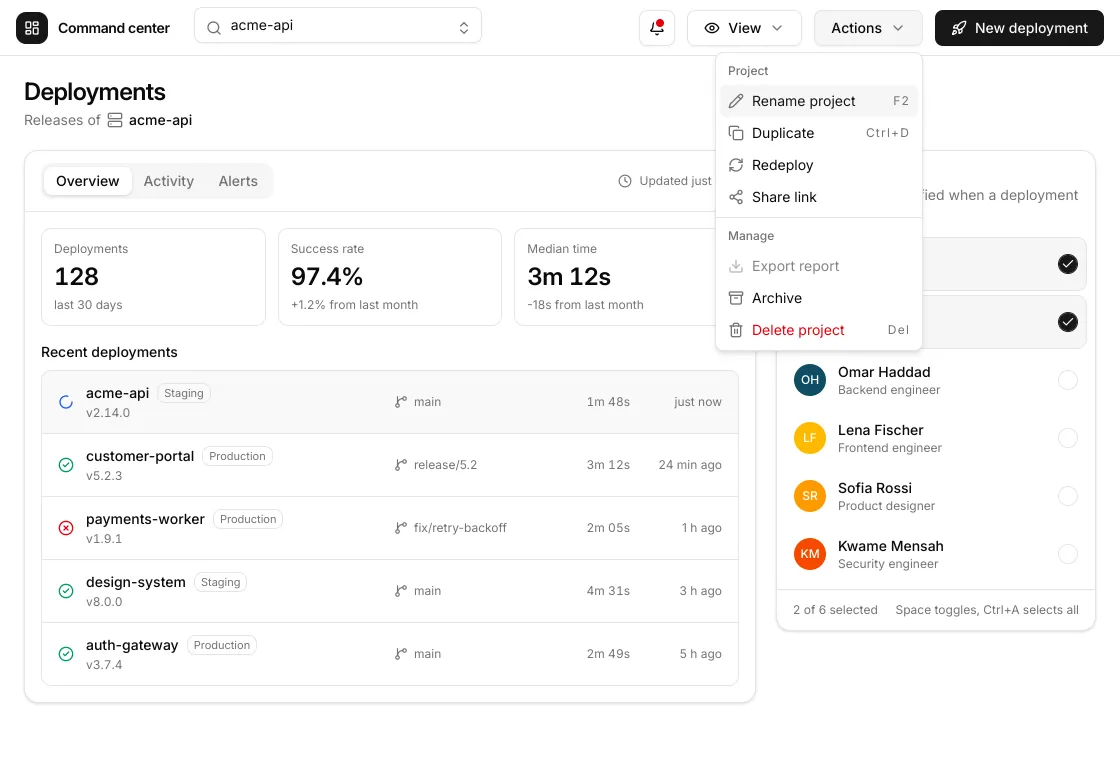
Section titled “A complete screen”examples/aria is a
“Command center” screen in the style of shadcn/ui built only from the hooks on
this page, the elements of h and classes with the theme tokens: a project
combobox, a tooltip, two menus (one of checkbox items), a modal dialog with a form
(an Input, a select, a switch, a submit button), tabs and a multiple-selection
list box, with entrances and exits, light and dark. Its tests drive the menu, the
combobox and the dialog with the keyboard alone and assert their aria
snapshots and where the focus is; its README lists which hook does what.